Merging PDFs is useful when a submission, archive, or print job expects one file instead of several. ToolsFree performs the merge in the browser with pdf-lib: the selected documents are read by the page, their pages are copied into a new PDF, and the result is downloaded to your device.
Limits you should know first
The tool accepts up to 20 PDF files, with a maximum of 100 MB per input file. Those are product limits, not a promise that every combination will fit in memory. A merge can still fail when the browser or device runs out of available memory, especially with image-heavy scans.
A repeatable merge workflow
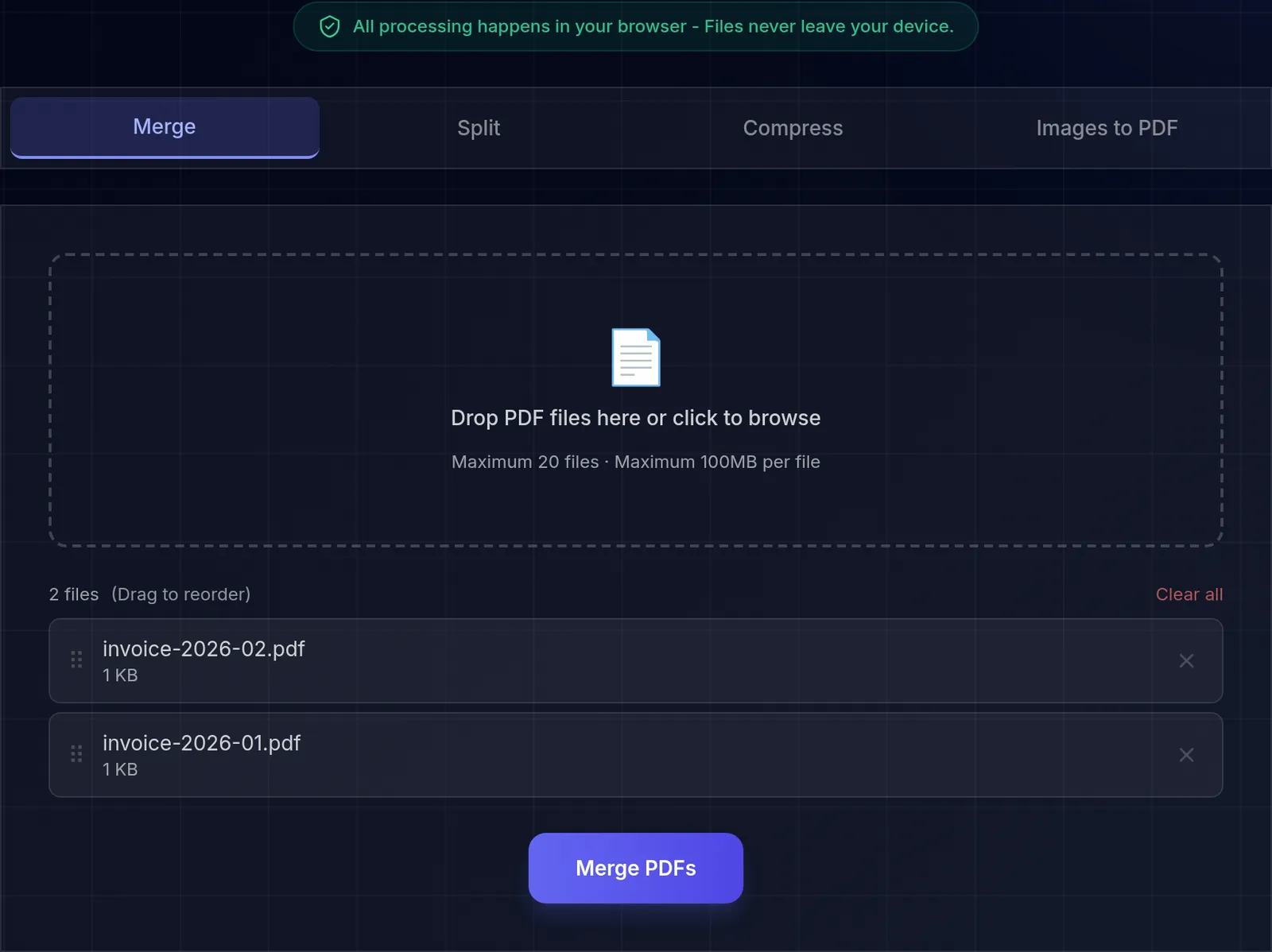
- Open the PDF tool and choose the merge tab.
- Select the documents, then arrange them in the exact order you want.
- Check the filenames and page order before starting the merge.
- Download the result, open it in a separate viewer, and inspect the first, last, and boundary pages.
Keep the source files until that inspection is complete. The downloaded PDF is a new file; the originals are not modified by the tool.
What a merge actually costs
Two questions decide whether a merge is safe to send: how big the result gets, and what it carries about the documents that went into it. We merged 3 generated PDFs through this tool, downloaded the result and read it back.
| Files merged | 3 |
|---|---|
| Pages in | 9 |
| Pages out | 9 |
| Inputs added up | 4.1 KB |
| Merged file | 2.5 KB |
| Size change | 38.6 % smaller |
| Title in the result | none |
| Author in the result | none |
| Producer in the result | pdf-lib (https://github.com/Hopding/pdf-lib) |
The page count survives exactly — 9 pages in, 9 out — which is the minimum you should demand of any merge tool. The size is the surprise: 4.1 KB of inputs came out as 2.5 KB, about 38.6 per cent smaller than the sum. We did not measure what causes that — inspecting the merged file shows it still holds one font object per input, so it is not the shared font being written once. Do not read it as a general rule either: these are small text-only documents that happen to share a font, and merging scanned pages or image-heavy reports will not behave anything like this.
The metadata answer is the one worth acting on. The inputs were authored by three different names, with distinct titles and subjects. The merged file carries none of them — no title, no author, no subject. What it does carry is a producer string naming the PDF library that did the merging, which says something about the tool and nothing about you.
That is a useful default, but it is a side effect of how merging works rather than a privacy feature, and it only covers document-level metadata. Anything inside the pages themselves — a name in a letterhead, a signature, text under a black rectangle drawn in another program — is page content, and merging carries it through untouched. If that matters, check the pages before you merge, not the properties dialog afterwards.
What local processing means
ToolsFree does not upload the selected PDF contents to its application server for this operation. Processing in the browser reduces exposure to an upload service, but it is not a complete security boundary: the device, browser, installed extensions, downloaded result, and any later sharing method still matter. Use a managed device and an approved workflow for confidential or regulated documents.
Cases that need a full PDF editor
A page-level merge does not repair damaged files, preserve every interactive form, validate accessibility, or maintain the legal validity of digital signatures. Password-protected PDFs may also require decryption before they can be processed. For signed forms, archival conformance, redaction, OCR, or accessibility remediation, use a specialist editor and verify its output against the applicable requirements.
Quality checklist
- Confirm the document order and page count.
- Check page orientation, cropped content, links, and form fields.
- Search for expected text if the source should remain searchable.
- Revalidate signatures or compliance requirements after any modification.